


10 Things to Check Before Buying a Used Laptop in Bangladesh

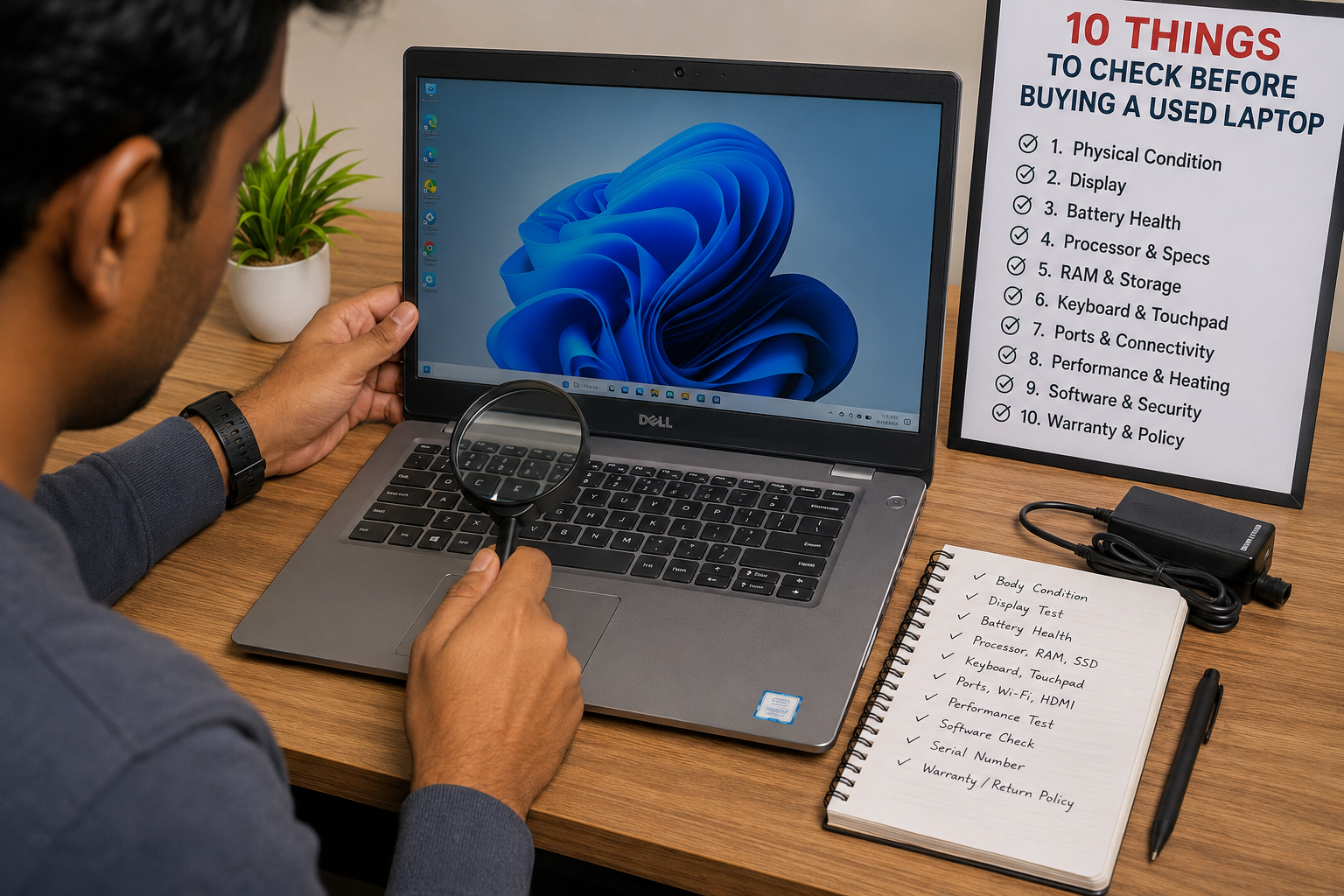
Buying a used laptop can be a smart way to get better specifications within your budget. However, you should inspect the physical condition, screen, battery, processor generation, RAM, SSD, keyboard, ports, temperature, software status, serial number and seller policy before making payment. A laptop that looks clean from outside may still have hidden problems that affect its performance and long-term value.
Do Not Buy a Used Laptop If:
- The laptop has a BIOS or UEFI password that the seller cannot remove.
- The serial number is missing, damaged or does not match the system details.
- The battery is swollen, overheats or shuts down unexpectedly.
- The screen has severe flickering, lines or major dead pixels.
- The seller refuses proper testing, proof of purchase or a return policy.
- The laptop remains linked to a business, school or previous owner account.
A used laptop does not need to look brand new. Small cosmetic marks can be acceptable when the price is fair. However, serious hardware faults, ownership concerns or a seller who avoids basic questions are strong reasons to walk away.
1. Check the Physical Condition, Body and Hinges
Start with the laptop’s outer body. Check the lid, corners, bottom cover, palm rest, keyboard area and screen frame. Light scratches are common on second-hand laptops, especially business models used in offices. What matters more is whether there are cracks, deep dents, bent corners or loose parts.
Open and close the laptop several times. The hinges should move smoothly and hold the screen firmly at different angles. A loose, stiff or cracking hinge can become expensive to repair. Also inspect the bottom panel for missing screws, damaged rubber feet or signs that the device has been opened carelessly.
Look at the charger too. The cable should not be cut, bent badly or repaired with tape. If the charging pin feels loose in the port, test it while gently moving the cable. A connection that repeatedly stops and starts may indicate a charger, cable or charging-port issue.
What to test: Body condition, hinges, screws, feet, charger and charging cable.
What is acceptable: Minor scratches, small signs of use and light wear around the keyboard or ports.
When to avoid buying: Cracked chassis, bent frame, broken hinge, missing screws, severe dents or an unstable charging connection.
2. Test the Display for Dead Pixels, Flickering and Brightness Problems
The display is one of the most important parts of any laptop. Replacing a laptop screen can be costly, so inspect it carefully before buying.
Open plain white, black, red, green and blue backgrounds on the screen. This simple test makes it easier to identify dead pixels, stuck pixels, coloured spots, screen lines and uneven brightness. A dead pixel may look like a tiny black or coloured dot that does not change with the background.
Check the display at both low and high brightness levels. Look for flickering, dim areas, uneven backlight, yellow patches or sudden colour changes. On a touch-screen laptop, test the full display by opening a drawing app or moving windows around the screen. Touch response should work across the entire panel, not only in the centre.
A little backlight glow around the edges may be visible on some older screens, especially in dark rooms. However, strong light leakage, large dark patches, moving lines or regular flickering should be treated as warning signs.
3. Check Battery Health and Charging Performance
Battery condition matters a lot for students, freelancers, remote workers and anyone who travels with a laptop. A used laptop may work perfectly while plugged in but provide very little battery backup.
For Windows laptops, open Command Prompt and run:
powercfg /batteryreport
Windows will generate an HTML battery report. Compare the battery’s “Design Capacity” with its “Full Charge Capacity”. A large difference can indicate battery wear. You should also check whether the laptop charges normally and whether the battery percentage changes smoothly.
For a MacBook, hold the Option key, click the Apple menu, open System Information, then select Power. Here, you can check the battery cycle count. You can also review Battery Health from the Battery section in System Settings.
Do not judge a laptop only by the reported percentage. Battery performance varies depending on the model, screen brightness, processor, applications, age and previous usage. The practical test is simple: unplug the charger, browse websites, play a video and observe whether the battery drains unusually fast or the laptop shuts down unexpectedly.
4. Verify the Processor Generation and Actual Specifications
Do not choose a used laptop only because it says “Core i5” or “Core i7”. Processor generation is equally important. For example, an Intel Core i5 8th Generation processor can be more suitable for modern work than a much older Core i7 processor.
Check the processor model from Windows Settings, Task Manager, System Information or BIOS. On Windows, you can open Task Manager, select the Performance tab and review the CPU, RAM and storage details. Make sure the specifications shown in the system match the seller’s listing.
For AMD laptops, look for the exact Ryzen model rather than assuming every Ryzen 5 or Ryzen 7 offers the same performance. Newer generations generally provide better efficiency, multitasking ability and compatibility with current software.
Also check whether the laptop has the RAM and SSD capacity advertised. Some models are sold in several configurations, so the exact device must match the product description.
Before buying, compare the processor, RAM, storage, display resolution and graphics capability with your own workload. A student using Microsoft Office and Google Meet does not need the same laptop as a designer editing high-resolution images or a programmer running virtual machines.
5. Check RAM, SSD Storage and Upgrade Options
RAM and storage directly affect how smoothly a laptop performs. For most buyers, an SSD is more important than a large HDD because it makes Windows boot faster, applications open more quickly and everyday work feel more responsive.
| User Type | Recommended RAM | Recommended Storage | Suitable Laptop Type |
| Students and basic office users | 8GB | 256GB SSD | Dell Latitude, HP EliteBook, Lenovo ThinkPad |
| Freelancers and multitaskers | 8GB–16GB | 512GB SSD | Business laptop or premium ultrabook |
| Programming and development | 16GB | 512GB SSD or higher | ThinkPad, Latitude, EliteBook or performance laptop |
| Graphic design and video editing | 16GB or more | 512GB SSD or higher | Premium laptop with stronger graphics |
| Light gaming | 16GB | 512GB SSD | Gaming laptop with dedicated graphics where needed |
Ask whether the RAM or SSD can be upgraded later. Many business laptops offer upgrade options, but some thin laptops have soldered RAM that cannot be increased. This is particularly important if you expect your workload to grow over time.
An HDD-based laptop can still be useful for very basic tasks, but it may feel slow compared with an SSD laptop. If you are buying an older laptop with an HDD, calculate the extra cost of upgrading it to an SSD before deciding whether the deal is actually good value.
For buyers comparing models, browse the available used laptops and focus on the exact RAM, SSD and processor combination rather than the brand name alone.
6. Test the Keyboard, Touchpad, Webcam, Microphone and Speakers
A laptop can have strong specifications but still be frustrating to use if the keyboard, touchpad or webcam is faulty. Open a text document and press every key, including the function keys, arrow keys, Enter, Shift, Backspace and number keys.
Watch for sticky keys, double typing, keys that do not respond or keys that feel unusually loose. Test the touchpad by moving the pointer, scrolling, clicking, dragging files and using two-finger gestures.
Open the camera application to test the webcam. Check whether the image is clear enough for online meetings and whether the camera opens without errors. Use the Sound settings or a voice recorder application to test the microphone. Speak normally and replay the recording to identify crackling, low volume or distortion.
Play a video or audio file to test the speakers. They do not need to sound like external speakers, but they should not produce loud crackling, distortion or sudden audio cuts.
7. Test USB Ports, HDMI, Wi-Fi, Bluetooth and Charging Port
Ports are easy to ignore until you need them. Test every available port before paying, especially USB-A, USB-C, HDMI, headphone jack, SD card slot and charging port.
Bring a USB flash drive, wired earphones and, where possible, an HDMI cable. Insert the USB drive into each port and confirm that the laptop detects it. Test the headphone jack with wired earphones. If you use an external monitor, confirm that HDMI output works correctly.
Connect to Wi-Fi and browse a few websites. Then turn on Bluetooth and try pairing a phone, mouse or earphones. A laptop with poor wireless connectivity can become inconvenient for remote work, presentations and online classes.
Pay close attention to the charging port. If the charger disconnects when the cable moves slightly, the port may be loose or damaged. This does not always mean the laptop is unusable, but it should affect your buying decision and the price you are willing to pay.
8. Check for Overheating, Fan Noise and Slow Performance
Do not inspect a used laptop only while it is idle. Use it for at least several minutes. Open multiple browser tabs, play a video, type in a document and switch between applications. Check whether it becomes unusually slow, hot or noisy.
Open Task Manager and look for unusually high CPU, memory or disk usage while the laptop is doing simple tasks. A temporary rise in activity is normal, especially during start-up. However, constant high usage, severe lag or repeated freezing may indicate software or hardware problems.
Listen to the cooling fan. A fan may become louder during updates, video playback or heavy work, but continuous loud fan noise during light browsing can suggest dust buildup, thermal issues or an ageing cooling system.
Warning signs include sudden restarts, blue-screen errors, excessive heat around the keyboard, regular freezing, random shutdowns and major slowdown when opening basic programs.
9. Check Windows or macOS, BIOS Lock, Serial Number and Ownership Status
Check whether Windows is activated by opening Settings and reviewing the Activation section. On a MacBook, make sure the previous owner has signed out of their Apple account and that the device is ready for a new user.
Ask the seller to restart the laptop and enter BIOS or UEFI settings if needed. A BIOS password that cannot be removed may limit your ability to change settings, install an operating system or manage the device properly.
Compare the serial number on the laptop body with the serial number shown in the system. If the numbers do not match, ask for a clear explanation before proceeding. A missing or damaged serial label should also be treated carefully.
For laptops previously used by businesses, schools or organisations, confirm that no company management system remains linked to the device. You should also ask about the charger, invoice or proof of purchase where available.
10. Compare Price, Warranty, Return Policy and Seller Reputation
The cheapest laptop is not always the best deal. Two laptops with the same processor may have very different values depending on battery health, RAM, SSD capacity, screen condition, cosmetic condition, included charger and after-sales support.
Compare the laptop’s age, CPU generation, RAM, SSD size, battery condition, display quality and physical condition. Then compare the seller’s warranty and return policy. A seller who clearly explains a device’s condition and support terms is usually a safer choice than an unknown seller offering an unusually low price.
Best Value Rule: A slightly higher-priced used laptop with verified specifications, proper testing and after-sales support can be safer than a cheaper unknown device.
It is also useful to compare several models before deciding. Check weekly deals and new listings, but do not rush into a purchase simply because a product appears discounted.
Used vs Open-Box Laptop: What Is the Difference?
| Type | Typical Condition | Main Advantage | Main Risk | Best For |
| Used laptop | Previously owned and may show cosmetic wear | Better specifications at a lower budget | Condition can vary between units | Budget buyers, students and office users |
| Open-box laptop | Box opened, returned, displayed or lightly handled | Often newer condition with less visible use | Accessories or packaging may vary | Buyers wanting a near-new device at a reduced price |
A used laptop can be an excellent choice when it has been checked properly and priced fairly. An open-box laptop may suit buyers who prefer newer hardware and cleaner cosmetic conditions. Your choice should depend on your workload, budget and preference for condition versus specifications.
Quick 10-Minute Used Laptop Inspection Checklist
- Inspect the body, hinges, screws and charger.
- Check the display on white, black, red, green and blue backgrounds.
- Test brightness, touch response and screen flickering.
- Run a battery check and test charging.
- Confirm processor model, generation, RAM and SSD capacity.
- Type on every keyboard key and test the touchpad.
- Test webcam, microphone and speakers.
- Test USB, USB-C, HDMI, Wi-Fi, Bluetooth and headphone ports.
- Use the laptop for several minutes to check overheating and fan noise.
- Confirm Windows or macOS status, BIOS access, serial number, warranty and seller policy.
Save this checklist on your phone before visiting a shop. It can help you avoid forgetting important checks when you are comparing several laptops.
Which Used Laptop Brands Are Good for Students and Professionals?
Dell Latitude, HP EliteBook and Lenovo ThinkPad models are popular choices for students, office professionals and programmers because many business models offer practical keyboards, durable designs and useful port selections. You can explore available Dell used laptops and Lenovo used laptops based on your preferred screen size, processor and budget.
Microsoft Surface laptops are often suitable for users who prioritise portability, touch displays and a clean premium design. Apple MacBook models can be suitable for users who prefer macOS, value portability or use creative applications. Review the available Apple laptops and Microsoft Surface laptops carefully, as upgrade options and repair requirements can differ by model.
Dell XPS models may appeal to buyers looking for a more premium Windows experience, while gaming laptops are better suited to users who need dedicated graphics for gaming, rendering or certain creative workloads.
The best laptop brand is not automatically the most expensive one. Choose based on your software needs, portability, battery expectations, preferred operating system, upgrade requirements and total budget.
How Digital Computer Shop Helps Buyers Choose with Confidence
Before buying any laptop, buyers should ask for verified specifications and inspect the device before final payment. It is important to understand the laptop’s condition, warranty terms and return policy before placing an order.
Digital Computer Shop encourages buyers to compare models based on their real workload rather than only price. A student, freelancer, programmer and designer may all need different specifications. Reading the existing used laptop buying guide in Bangladesh can also help you compare processor, RAM, storage and display requirements before choosing a model.
Frequently Asked Questions
Is it safe to buy a used laptop in Bangladesh?
Yes, it can be safe when you check the laptop properly and buy from a seller that clearly explains the specifications, condition, warranty and return policy. Always test the device or request clear product details before payment.
How do I check battery health on a used laptop?
For Windows laptops, run powercfg /batteryreport in Command Prompt and compare Full Charge Capacity with Design Capacity. For MacBooks, check Battery Health and cycle count from System Settings or System Information.
How much RAM should a used laptop have?
For basic study, browsing and office work, 8GB RAM is a practical minimum. For programming, heavy multitasking, design work or editing, 16GB RAM is usually a better target.
Is an HDD laptop worth buying?
An HDD laptop may be worth buying only at a very low price for basic work. For a faster and smoother experience, choose an SSD laptop or confirm whether an SSD upgrade is possible.
How old is too old for a used laptop?
Age alone does not decide whether a laptop is worth buying. Processor generation, battery condition, SSD health, software compatibility and physical condition matter more than the manufacturing year alone.
Should I buy a used laptop without a warranty?
Buying without a warranty is riskier because some issues may appear after several days of use. A clear warranty or return policy gives buyers more protection if an undisclosed fault is found.
What should I check before paying for a used laptop?
Check the body, hinges, display, battery, processor, RAM, SSD, keyboard, ports, cooling performance, operating system status, serial number and seller policy before payment.
Which used laptop brand is best for students in Bangladesh?
Dell Latitude, HP EliteBook and Lenovo ThinkPad are often practical options for students because they are commonly available in different configurations and price ranges. The best model depends on the student’s software needs, portability preference and budget.
Final Thoughts
A used laptop can offer excellent value when you inspect it carefully instead of choosing only by price or brand. Test the hardware, verify the specifications, check the battery and screen, and make sure the seller provides clear information about the laptop’s condition and support terms.
Browse Digital Computer Shop’s new arrivals, compare available models and choose a laptop that matches your actual work, study or business requirements.
